

Select the suspicious message, click Report in the Outlook toolbar, and choose Report phishing. The exact location of the Report button varies by Outlook version, and the sections below cover each one.
Reporting a phishing email doesn’t open links, download attachments, or reply to the sender. You can report the message without interacting with its contents.
How to report phishing in new Outlook and Outlook on the web
New Outlook for Windows and Outlook on the web have a built-in Report button, so you don't need to install an add-in. The steps are identical in both clients.
- In the message list, select the suspicious email. Don't click any links or attachments.
- Click Report in the Outlook ribbon or message toolbar.
- Choose Report phishing.
- Outlook reports the phishing email and removes it from your inbox.
If you can't see the Report button, check the additional actions available in the message toolbar. If it is still missing, see the troubleshooting section below.
How to report phishing in classic Outlook for Windows
Current builds of classic Outlook for Windows have a built-in Report button. Older builds may show different reporting options.
- Select the phishing email in the message list, or open it in the reading pane.
- On the Home tab, find Report.
- Choose Report phishing.
You can also right-click the message and choose Report from the context menu.
If you can’t find the Report button, your version of Outlook may use a different reporting option. Older builds may put phishing inside the Junk dropdown, while some organizations still use Microsoft’s older Report Message or Report Phishing add-in.
The built-in Report button requires a supported version of Outlook, and the minimum build varies by update channel. Microsoft maintains the current version requirements in its announcement of the built-in report button, so check its documentation for the latest requirements.
How to report phishing in Outlook for Mac and on mobile
On Mac:
- Select the phishing email.
- On the Home tab, click Report.
- Choose Phishing.
You can also right-click the message and choose the reporting option from the context menu.
In the Outlook mobile app for iOS and Android:
- Open the suspicious message without tapping any links, attachments, or QR codes.
- Tap the three-dot menu at the top of the message.
- hoose the reporting option. Depending on your app version, this appears as Report or Report junk.
- Select Phishing or Report phishing.
Microsoft lists the built-in reporting option as requiring Outlook for iOS 4.2511 or later, or Outlook for Android 4.2446 or later. It also won't appear if your organization has turned off user reporting or configured a third-party reporting tool instead.
What happens after you report
What happens to a reported message depends on your account and, for Microsoft 365 work accounts, your organization's user reported settings. Personal and managed accounts route reports differently.
A phishing report can go to Microsoft for analysis. On a managed work account, it can also route to your organization’s security team through a reporting mailbox configured by your administrators.
Three actions in Outlook look similar but serve different purposes:
- Report phishing is for a message impersonating a person, brand, or service to steal credentials, money, or other information. Microsoft deletes the reported message from your mailbox when you use the built-in reporting feature.
- Report junk is for unwanted email that isn't necessarily malicious. Outlook moves the message to your Junk Email folder.
- Block sender stops future messages from that email address from reaching your inbox. It is a personal mailbox action rather than a phishing report.
One limitation: reporting a phishing email doesn’t automatically block the sender from contacting you again. If you also want to stop messages from that address, block the sender separately.
When the Report button is missing
If you can't find the Report button in Outlook, the cause is usually one of three things. Check them in order before escalating.
- The Report button is in a different location. Check the instructions above for your version of Outlook before troubleshooting the feature itself.
- Your Outlook build predates the built-in Report button. Check your version against Microsoft’s current minimum requirements and update Outlook if necessary. This is particularly relevant to classic desktop clients using different update channels.
- Your organization uses different user reported settings. Microsoft 365 administrators can control how users report suspicious messages. Your organization may have disabled the built-in option or use a third-party reporting tool with its own button.
If you still can’t find the reporting option, contact your IT or security team and ask how to report phishing. Don't forward a suspected phishing email to an address you found online or send it to colleagues for a second opinion. Forwarding the message puts the suspicious content into another inbox.
A note for administrators: Microsoft’s standalone Report Message and Report Phishing add-ins are now in maintenance mode. Microsoft recommends using the built-in Report button and configuring reporting through User reported settings in the Microsoft Defender portal. Administrators can configure whether reported messages go to Microsoft, a designated reporting mailbox, or both.
For IT teams: turning reports into something useful
This section is for the person receiving phishing reports rather than the person sending them. Everything above assumes you're the employee with a suspicious message open; what follows assumes you're the one it lands on.
A report button is an input, not a process. Four questions determine whether reporting works in practice:
- Where do reports land?
- Who reviews them?
- How quickly does a verdict come back?
- Does the person who reported the message hear what happened?
That last question matters. If employees report suspicious emails and hear nothing back, they have little reason to keep reporting them. The behavior your security awareness training is trying to build needs a visible outcome.
Frame Security connects the report to what happens next. Employees can report suspicious emails directly from their inbox without forwarding or copying them. If your organization already has a reporting button, Frame can integrate with it or replace it rather than adding a second reporting workflow.
From there, Frame’s phishing triage workflow can:
- Analyze the reported email: Frame’s AI examines the headers, content, links, and attachments and returns a verdict.
- Give admins remediation options: Mark the message as safe, flag it as spam, or delete it from every inbox in the organization in one action.
- Turn real attacks into training: Import a reported email as a template for phishing and deepfake simulations based on threats targeting your organization.
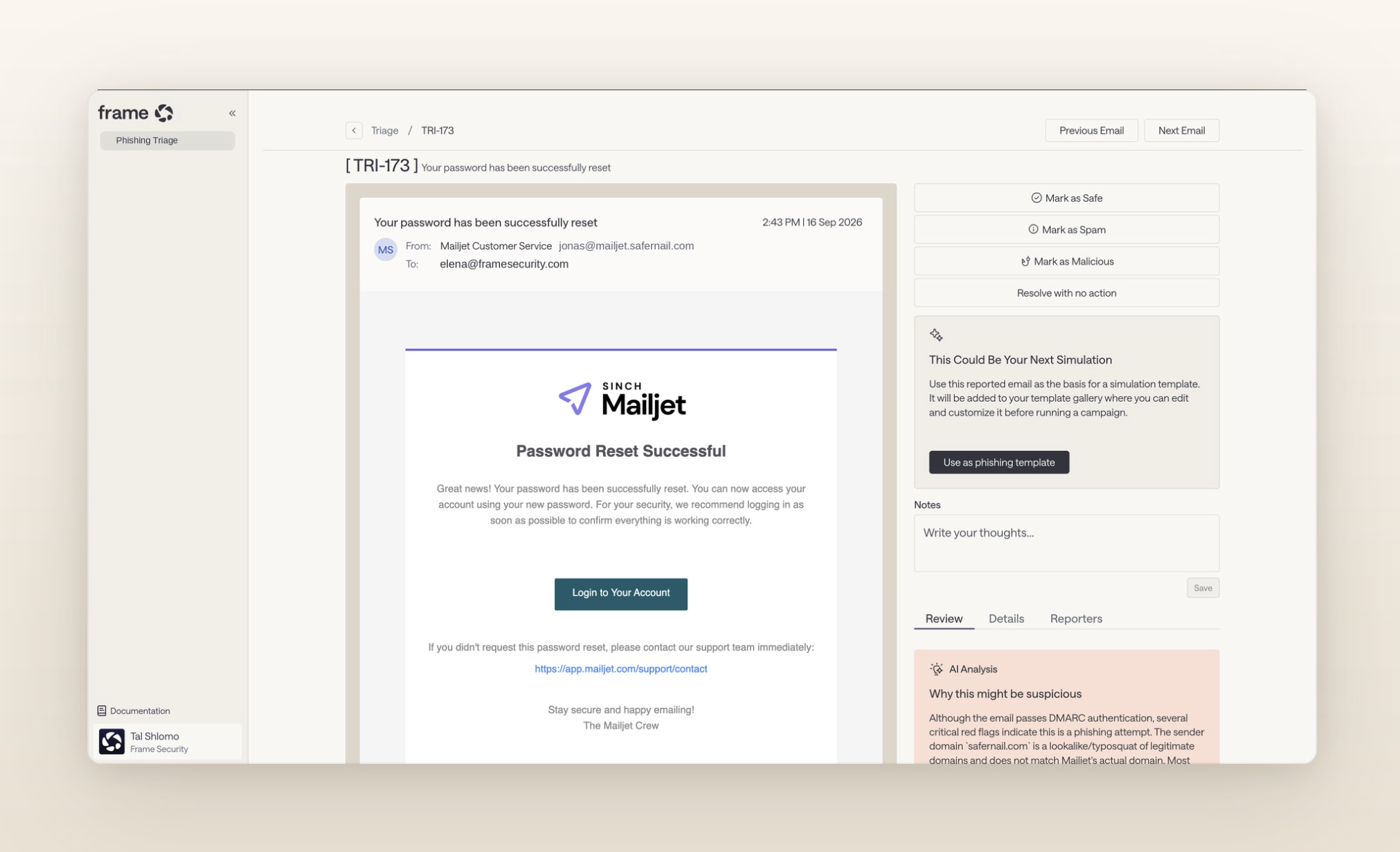
Turning reported emails into training shows how that workflow connects reporting, triage, remediation, and training.
Turn phishing reports into action
Reporting works better when employees can see that it leads somewhere: they report a suspicious email, the security team gets a verdict, the threat can be removed, and the employee finds out what happened.
That feedback loop connects the Report phishing button to wider human risk reduction. Combined with training delivered at the moment of failure, it gives employees a reason to recognize, report, and respond to phishing threats when they encounter them.
Book a demo to see how Frame Security can turn your next reported phishing email into triage, remediation, and training.
FAQs about reporting phishing in Outlook
Can I report a phishing email after I clicked a link?
Yes. Report the phishing email in Outlook so it can be analyzed, but reporting it does not undo any action you already took. If you clicked a link, opened an attachment, entered credentials, approved an MFA request, or shared sensitive information, contact your IT or security team immediately and follow your organization’s incident response process.
What is the difference between Report phishing and Report junk in Outlook?
Use Report phishing for messages designed to impersonate a person, company, or service and trick you into revealing information, sending money, or taking another unsafe action. Use Report junk for unwanted or unsolicited email that isn't necessarily malicious. Reporting junk typically moves the message to your Junk Email folder.
Why don’t I have a Report phishing option in Outlook?
First, check the instructions above for your version of Outlook. Older Outlook builds may not support the built-in Report button, while Microsoft 365 administrators can also control reporting through user reported settings or provide a different reporting tool. If the option is still missing after you update Outlook, contact your IT or security team to confirm how your organization handles phishing reports.
Is it safe to open a phishing email to report it?
Opening a message for the purpose of reporting it is generally different from interacting with its contents. Don't click links, open attachments, scan QR codes, reply, or follow instructions in a suspicious message. Use Outlook’s reporting controls to submit the email without interacting with those elements.
Does reporting a phishing email block the sender?
No. Reporting a phishing email and blocking its sender are separate actions. A phishing report submits the message through the reporting process and removes it from your inbox, but it does not automatically prevent that email address from contacting you again. If necessary, use Block sender separately.
